Quickstart

By the end of this page, you will have imported your own images into Pixano and set up a dataset ready for annotation with bounding boxes and masks. Along the way, you will learn how Pixano organizes data — and why it works that way.

What you'll learn
  • What a DatasetInfo is and why you need one
  • The role of records, views, entities, and annotations in a dataset
  • How to import images and launch the Pixano app

Prerequisites

  • Python 3.10–3.13 with Pixano installed (see Installation)
  • A few images (JPEG or PNG) on your computer — 3 to 5 is enough

Step 1 — Initialize Pixano

First, bootstrap Pixano by creating a library — the place where all your datasets will be stored:

Terminal window
pixano init ./my_library

This sets up your dataset library and runs all internal setup. From now on, ./my_library is where Pixano manages your datasets and everything it needs to operate.

Step 2 — Define your dataset schema

Before importing anything, you need to tell Pixano what your dataset looks like. You do this by creating a DatasetInfo — a Python object that declares which tables Pixano should create in the database.

Create a file called my_info.py anywhere on your machine (e.g. in your current working directory):

from pixano.datasets import DatasetInfo
from pixano.datasets.workspaces import WorkspaceType
from pixano.schemas import BBox, CompressedRLE, Entity, Image, Record
class MyObject(Entity):
"""A custom entity for the objects we want to annotate."""
category: str = ""
dataset_info = DatasetInfo(
name="My First Dataset",
workspace=WorkspaceType.IMAGE,
record=Record,
entity=MyObject,
bbox=BBox,
mask=CompressedRLE,
views={"image": Image},
)

Let’s break this down — each piece maps to a concept in Pixano’s data model:

  • Record — Represents one sample in your dataset. Each image you import becomes one record. Records carry metadata like which split they belong to (train, val) and their annotation status (new, inProgress, validated).

  • views={"image": Image} — Defines the media attached to each record. Here, each record has a single view named "image". For multi-view setups (e.g. stereo cameras), you would add more entries to this dictionary.

  • entity=MyObject — Entities are the objects you want to label in your images — a car, a person, a tree. We subclass Entity to add a category field so we can tag what kind of object each one is. You can add any fields you need (e.g. is_occluded: bool = False).

  • bbox=BBox — Tells Pixano to create a bounding box annotation table. This is where the rectangular coordinates for each labeled object will be stored.

  • mask=CompressedRLE — Tells Pixano to also create a mask annotation table, using compressed run-length encoding. This enables pixel-level segmentation annotations alongside bounding boxes.

  • workspace=WorkspaceType.IMAGE — Selects the UI layout. IMAGE gives you a single-image viewer with annotation tools. Other options include VIDEO, IMAGE_VQA, and IMAGE_TEXT_ENTITY_LINKING.

Why define the schema upfront?

Pixano uses your schema to create the right database tables before any data is imported. This means annotations are structured and queryable from day one — not just flat files. It also means Pixano knows which annotation tools to show you in the UI.

Step 3 — Prepare your source folder

Pixano imports data from a source folder organized by splits. Each split is a subfolder containing your images.

Create a folder and put a few images in it:

Terminal window
mkdir -p my_images/train
# Copy 3-5 JPEG or PNG images into my_images/train/

Your folder should look like this:

my_images/
train/
photo1.jpg
photo2.jpg
photo3.jpg

The subfolder name (train) becomes the split assigned to each record. You can add more splits later (e.g. val/, test/) by re-importing with --mode add.

Without a metadata.jsonl file, Pixano auto-discovers all supported images in each split folder and creates one record per image.

Step 4 — Import the dataset

Now bring everything together:

Terminal window
pixano data import ./my_library ./my_images --info my_info.py:dataset_info

Here is what this command does:

  1. Reads your DatasetInfo from my_info.py
  2. Scans my_images/ for split folders and images
  3. Creates a new dataset in ./my_library with the tables you defined
  4. Stores each image as a record with its associated view

The --info flag uses the format path/to/file.py:attribute_name to locate your DatasetInfo object. The path can be absolute or relative to your current working directory — it doesn’t need to be inside the library or the source folder.

Common import options:

OptionDescription
--infoDataset info as path/to/file.py:attribute. Required.
--modecreate (default), overwrite, or add.
--dry-runValidate without creating the dataset.

Step 5 — Launch and explore

Start the Pixano server:

Terminal window
pixano server run ./my_library

Open http://127.0.0.1:7492 in your browser.

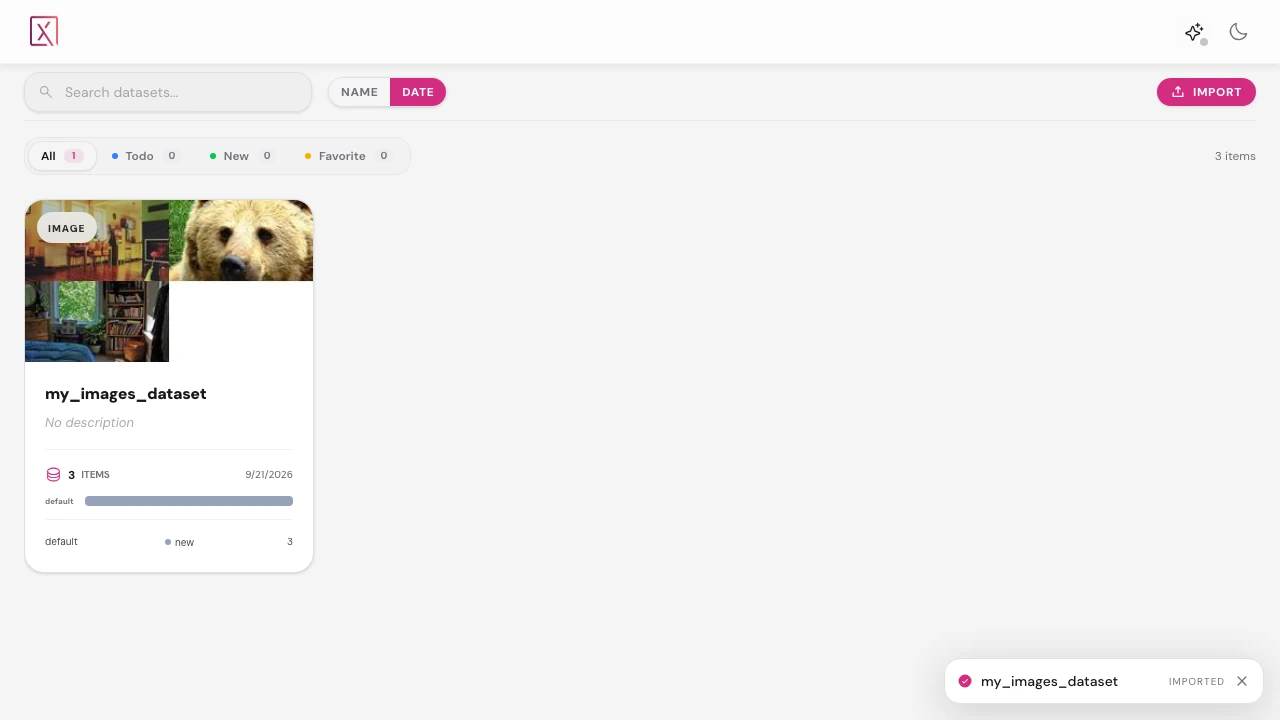
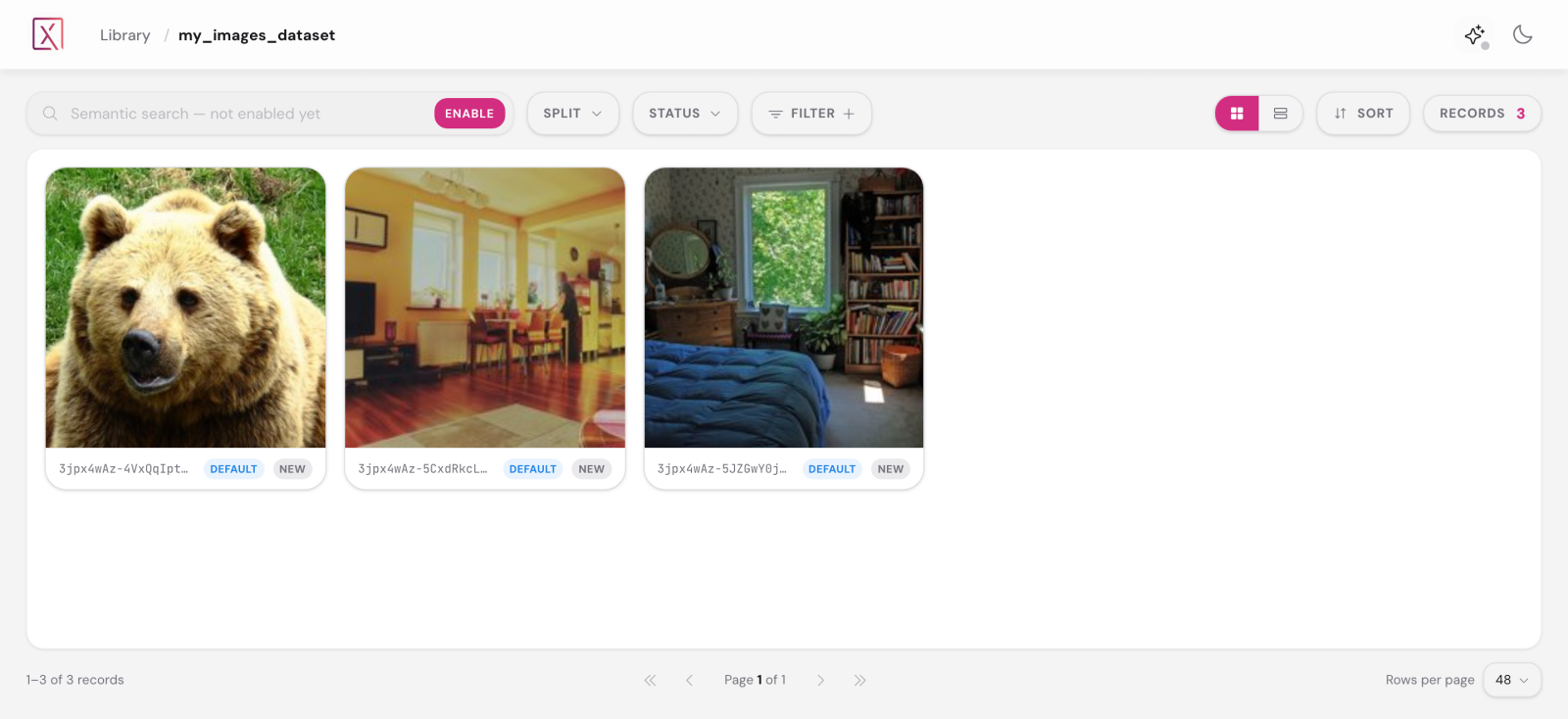
You will see the Pixano home page with a card for your dataset. Click it to enter the dataset explorer, where you can browse your images, see their split and status, and open any image in the annotation workspace.

Server options:

OptionDescriptionDefault
--hostBind address (e.g. 0.0.0.0 for network access)127.0.0.1
--portPort number7492

What just happened?

Let’s connect the dots between what you did and how Pixano sees your data:

  • The DatasetInfo you wrote became a set of database tables — one for records, one for image views, one for entities, one for bounding boxes, and one for masks.
  • Each image you placed in my_images/train/ became a record in the train split, with an associated image view.
  • The entity and annotation tables are empty for now — they will be populated as you (or a model) annotate objects in the UI.
  • Because you declared BBox and CompressedRLE in your schema, the annotation workspace knows to offer both bounding box and mask tools when you start labeling.

You will learn more about this data model in Key Concepts.

Next steps

Esc